Intermec PD41 Bedienungsanleitung Seite 1
Stöbern Sie online oder laden Sie Bedienungsanleitung nach Etikettendrucker Intermec PD41 herunter. Intermec PD41 User's Manual Benutzerhandbuch
- Seite / 94
- Inhaltsverzeichnis
- FEHLERBEHEBUNG
- LESEZEICHEN

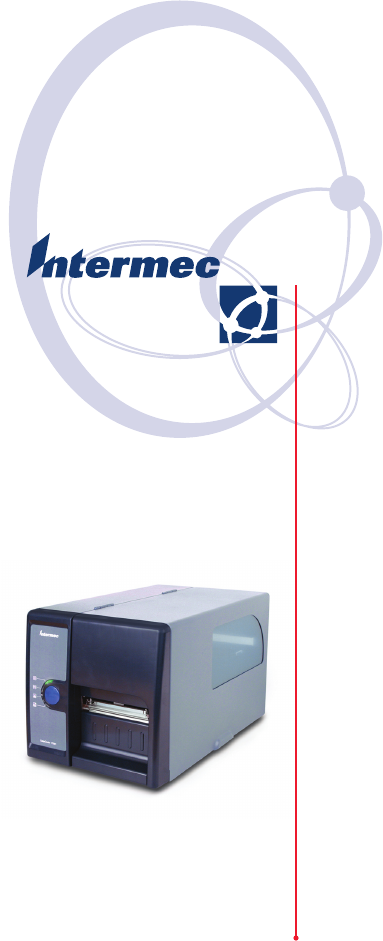
- EasyCoder® PD41 1
- User’s Guide 1
- Contents 3
- Global Services and Support 8
- Who Should Read This Manual 9
- Related Documents 9
- Before You Begin 10
- Getting Started 11
- Description of EasyCoder PD41 12
- Product Identification 14
- Front View 14
- Controls and Indicators 15
- Connectors 16
- Rear View 16
- Media Compartment 17
- Print Mechanism 17
- Installing the Printer 18
- Chapter 1 — Getting Started 19
- Printing a Test Label 20
- Operating the Printer 21
- Loading Media 22
- Tear-Off, continued 23
- Peel-Off 25
- Peel-Off, continued 26
- Loading Ribbon 28
- Loading Ribbon, continued 29
- LED indicators 31
- Print Button 32
- Print Button function 33
- Maintaining the 35
- General Maintenance Advice 36
- Printhead Cleaning 36
- Internal Cleaning 37
- External Cleaning 37
- Troubleshooting 39
- Printer Operation Problems 40
- Print Quality Problems 41
- Ready-to-Work™ Indicator 42
- Troubleshooting Adjustments 42
- 1234567890 43
- Printhead Adjustments 44
- Chapter 4 — Troubleshooting 45
- Label Gap Sensor Adjustments 47
- Sensor lever 48
- Point of 48
- Setting up the Printer 49
- The Printer Startup Sequence 50
- Using PrintSet 4 51
- Using the Printer’s Home Page 51
- Using the Command Line 51
- Running Testmode 52
- Extended Testmode 53
- Extended Testmode: Activating 54
- Extended Testmode: 7e - Exit 56
- Upgrading Firmware 57
- Technical Data 59
- Printer Specifications 60
- °C to +40°C (+41°F to 104°F) 61
- °C to 70°C (-4°F to 122°F) 61
- Printer Specifications Table 62
- Media Specifications 63
- Media Roll Sizes 64
- Ribbon Size 65
- Paper Types and Sizes 66
- Self-Adhesive Strip 67
- Self-Adhesive Labels 68
- SELF-ADHESIVE 69
- DIRECTION 69
- Tickets with Gaps 70
- TICKETS & TAGS 71
- Tickets with Black Mark 72
- TICKETS 73
- WITH MARKS 73
- Setup Parameters 75
- Setup Description 76
- Serial Communication Setup 76
- Character Length 77
- Stop Bits 77
- Flow Control 77
- Feed Adjust Setup 78
- Media Setup 79
- Appendix C — Setup Parameters 80
- Media Type 81
- Paper Type 82
- Thermal Transfer printing 83
- Print Definitions 84
- Interfaces 85
- RS-232 Serial Interface 86
- USB Interface 87
- EasyLAN Ethernet Interface 88
- Parallel IEEE 1284 Interface 88
- Pinout Description 89
- Appendix D — Interfaces 90
- Cutter Kit 92
- Internal Rewinder 92
- Printhead Kit 92
- Appendix E — Options 93
- *1-960652-00* 94
Inhaltsverzeichnis
EasyCoder® PD41PrinterUser’s Guide
Before You Beginx EasyCoder PD41 Printer User’s GuideThe Intermec web site at www.intermec.com contains our documents (as PDF files) that you can down
EasyCoder PD41 Printer User’s Guide 11Getting StartedThis chapter introduces the EasyCoder PD41, and explains how to get your new printer connected to
Chapter 1 — Getting Started2 EasyCoder PD41 Printer User’s GuideDescription of EasyCoder PD41The EasyCoder PD41 printer is a dependable and versatile
Chapter 1 — Getting StartedEasyCoder PD41 Printer User’s Guide 32 Check that no visible damage has occured during transportation. Keep the packing mat
Chapter 1 — Getting Started4 EasyCoder PD41 Printer User’s GuideProduct IdentificationThe machine and serial number labels are attached to the printer
Chapter 1 — Getting StartedEasyCoder PD41 Printer User’s Guide 5Controls and IndicatorsFront panel: LEDs and Print button.The blue button on the front
Chapter 1 — Getting Started6 EasyCoder PD41 Printer User’s GuideRear ViewEasyCoder PD41: Rear ViewConnectorsRear view: Connection socketsSide doorInta
Chapter 1 — Getting StartedEasyCoder PD41 Printer User’s Guide 7Media CompartmentEasyCoder PD41: Media CompartmentPrint MechanismEasyCoder PD41: Print
Chapter 1 — Getting Started8 EasyCoder PD41 Printer User’s GuideInstalling the PrinterPlugging in the Printer1 Make sure the Power Switch is turned of
Chapter 1 — Getting StartedEasyCoder PD41 Printer User’s Guide 9Connecting the Printer through the USB interfaceIn order to use the USB connection, yo
ii EasyCoder PD41 Printer User’s GuideIntermec Technologies CorporationCorporate Headquarters6001 36th Ave.W.Everett, WA 98203U.S.A.www.intermec.comTh
Chapter 1 — Getting Started10 EasyCoder PD41 Printer User’s GuideConnecting the Printer through the Parallel PortUse the parallel interface (also refe
EasyCoder PD41 Printer User’s Guide 112Operating the PrinterThis chapter explains the basic operation of the printer. You will learn how to load media
Chapter 2 — Operating the Printer12 EasyCoder PD41 Printer User’s GuideLoading MediaThe EasyCoder PD41 can print on labels, tickets, tags and continuo
Chapter 2 — Operating the PrinterEasyCoder PD41 Printer User’s Guide 13Tear-Off, continued3Lift the label feed guide.4Load a media roll onto the media
Chapter 2 — Operating the Printer14 EasyCoder PD41 Printer User’s GuideTear-Off, continued7Route the media through the print mechanism.8If using fan-f
Chapter 2 — Operating the PrinterEasyCoder PD41 Printer User’s Guide 15Peel-Off (Self-Strip) OperationThis section describes the case when self-adhesi
Chapter 2 — Operating the Printer16 EasyCoder PD41 Printer User’s GuidePeel-Off, continued3Route the liner through the print mechanism and back as sho
Chapter 2 — Operating the PrinterEasyCoder PD41 Printer User’s Guide 17Peel-Off, continued7Push in the location indicated above to bring out the label
Chapter 2 — Operating the Printer18 EasyCoder PD41 Printer User’s GuideLoading Thermal Transfer RibbonThermal transfer printing makes it possible to u
Chapter 2 — Operating the PrinterEasyCoder PD41 Printer User’s Guide 19Loading Ribbon, continued3Push the ribbon roll onto the right ribbon hub, and t
EasyCoder PD41 Printer User’s Guide iiiContentsBefore You Begin. . . . . . . . . . . . . . . . . . . . . . . . . . . . . . . . .viiSafety Information
Chapter 2 — Operating the Printer20 EasyCoder PD41 Printer User’s GuideLoading Ribbon, continued6Reset the printhead lever to its original position. C
Chapter 2 — Operating the PrinterEasyCoder PD41 Printer User’s Guide 21LED indicators and the Print ButtonThe PD41 printer can be in the following “st
Chapter 2 — Operating the Printer22 EasyCoder PD41 Printer User’s GuideThe green Ready/Data indicator will be turned on, off or flash depending on the
Chapter 2 — Operating the PrinterEasyCoder PD41 Printer User’s Guide 23Print Button functionState Button pressed < 1 s Button pressed > 1 sPower
Chapter 2 — Operating the Printer24 EasyCoder PD41 Printer User’s Guide
EasyCoder PD41 Printer User’s Guide 253Maintaining the PrinterThis chapter explains basic maintenance of the printer. By following the instructions in
Chapter 3 — Maintaining the Printer26 EasyCoder PD41 Printer User’s GuideGeneral Maintenance AdviceIn order to attain optimal productivity and a long
Chapter 3 — Maintaining the PrinterEasyCoder PD41 Printer User’s Guide 274 Use a cleaning card or a soft cotton swab moistened with isopropyl alcohol
Chapter 3 — Maintaining the Printer28 EasyCoder PD41 Printer User’s GuideUse a soft cloth, possibly moistened with water or a mild detergent when clea
EasyCoder PD41 Printer User’s Guide 294TroubleshootingThis chapter helps to diagnose problems that may occur during printer operation and how to resol
iv EasyCoder PD41 Printer User’s GuideLED indicators and the Print Button . . . . . . . . . . . . . . . . . 21LED indicators. . . . . . . . . . . . .
Chapter 4 — Troubleshooting30 EasyCoder PD41 Printer User’s GuidePrinter Operation ProblemsThe following table lists possible problems that affect the
Chapter 4 — TroubleshootingEasyCoder PD41 Printer User’s Guide 31Print Quality ProblemsPrint Quality ProblemsProblem Solution / ReasonPrintout is fade
Chapter 4 — Troubleshooting32 EasyCoder PD41 Printer User’s GuideReady-to-Work™ IndicatorThe blue Ready-to-Work LED is lit when the printer is operati
Chapter 4 — TroubleshootingEasyCoder PD41 Printer User’s Guide 33Ribbon Shield AdjustmentThe ribbon shield mechanism is located on the thermal printhe
Chapter 4 — Troubleshooting34 EasyCoder PD41 Printer User’s Guidetools that can damage the platen roller or printhead. Avoid rotating the platen rolle
Chapter 4 — TroubleshootingEasyCoder PD41 Printer User’s Guide 355 Engage the printhead and load the ribbon.6 Test and readjust if necessary. (Tip: Us
Chapter 4 — Troubleshooting36 EasyCoder PD41 Printer User’s Guide5 Engage the printhead and load the ribbon.6 Test and readjust if necessary. (Tip: Us
Chapter 4 — TroubleshootingEasyCoder PD41 Printer User’s Guide 37tighten both screws completely by turning them counterclockwise as far as they go and
Chapter 4 — Troubleshooting38 EasyCoder PD41 Printer User’s Guide2 Check the point of detection from the front (with the printhead lifted.)Sensor leve
EasyCoder PD41 Printer User’s Guide 395Setting up the PrinterThe EasyCoder PD41 has many settings that control printer operation, communication settin
EasyCoder PD41 Printer User’s Guide vA Technical Data. . . . . . . . . . . . . . . . . . . . . . . . . . . . . .49Printer Specifications. . . . . . .
Chapter 5 — Setting up the Printer40 EasyCoder PD41 Printer User’s GuideThe Printer Startup SequenceWhen switched on, the printer will go through a se
Chapter 5 — Setting up the PrinterEasyCoder PD41 Printer User’s Guide 41Changing Configuration SettingsThe complete list of setup options can be found
Chapter 5 — Setting up the Printer42 EasyCoder PD41 Printer User’s GuideRunning TestmodeYou can check certain settings, print a test label, or enter t
Chapter 5 — Setting up the PrinterEasyCoder PD41 Printer User’s Guide 43Extended TestmodeThe extended testmode can be used to run additional tests. Th
Chapter 5 — Setting up the Printer44 EasyCoder PD41 Printer User’s GuideThe functions 7a-7e are described on the next page.Extended Testmode: Activati
Chapter 5 — Setting up the PrinterEasyCoder PD41 Printer User’s Guide 45Extended Testmode: 7a - Test Label FunctionStepData/Ready Error RtW Button Com
Chapter 5 — Setting up the Printer46 EasyCoder PD41 Printer User’s GuideExtended Testmode: 7d - Factory Default FunctionStepData/ReadyError RtW Button
Chapter 5 — Setting up the PrinterEasyCoder PD41 Printer User’s Guide 47Upgrading FirmwareThe www.intermec.com web site contains the latest software t
Chapter 5 — Setting up the Printer48 EasyCoder PD41 Printer User’s Guide
EasyCoder PD41 Printer User’s Guide 49ATechnical DataThis Appendix lists technical specifications for the EasyCoder PD41. The appendix contains:• Tabl
vi EasyCoder PD41 Printer User’s GuideEasyLAN Ethernet Interface . . . . . . . . . . . . . . . . . . . . . . . . 78Parallel IEEE 1284 Interface. . . .
Appendix A — Technical Data50 EasyCoder PD41 Printer User’s GuidePrinter SpecificationsPrinter Specifications TablePhysical DimensionsDimensions (WxLx
Appendix A — Technical DataEasyCoder PD41 Printer User’s Guide 51Resident scaleable fonts 15Character Sets • 23 single-byte character sets standard.•
Appendix A — Technical Data52 EasyCoder PD41 Printer User’s GuideElectronicsMicropocessor ARM 9Standard Memory 4 MB Flash, 8 MB SDRAM.InterfacesRS-232
EasyCoder PD41 Printer User’s Guide 53BMedia SpecificationsThis appendix illustrates the different media types the EasyCoder PD41 can operate with, an
Appendix B — Media Specifications54 EasyCoder PD41 Printer User’s GuideMedia Roll SizesThe media roll must comply with the following dimensions:Media
Appendix B — Media SpecificationsEasyCoder PD41 Printer User’s Guide 55The media supply must not be exposed to sand, dust, grit etc. Any hard particle
Appendix B — Media Specifications56 EasyCoder PD41 Printer User’s GuidePaper Types and SizesNon-Adhesive StripPaper Type Setup•Variable length strip•F
Appendix B — Media SpecificationsEasyCoder PD41 Printer User’s Guide 57Self-Adhesive StripPaper Type Setup•Variable length strip•Fixed length stripSel
Appendix B — Media Specifications58 EasyCoder PD41 Printer User’s GuideSelf-Adhesive Labels* This is the print length limit set by memory constraints.
Appendix B — Media SpecificationsEasyCoder PD41 Printer User’s Guide 59Self-adhesive LabelsabceSELF-ADHESIVELABELSbdFEEDDIRECTION
Before You BeginEasyCoder PD41 Printer User’s Guide viiBefore You BeginThis section provides you with safety information, technical support informatio
Appendix B — Media Specifications60 EasyCoder PD41 Printer User’s GuideTickets with Gaps* This is the print length limit set by memory constraints.Pap
Appendix B — Media SpecificationsEasyCoder PD41 Printer User’s Guide 61Tickets with GapsaTICKETS & TAGSFEEDDIRECTIONbedc
Appendix B — Media Specifications62 EasyCoder PD41 Printer User’s GuideTickets with Black Mark* This is the print length limit set by memory constrain
Appendix B — Media SpecificationsEasyCoder PD41 Printer User’s Guide 63Tickets with Black MarkNote: Preprint that may interfere with the detection of
Appendix B — Media Specifications64 EasyCoder PD41 Printer User’s Guide
EasyCoder PD41 Printer User’s Guide 65CSetup ParametersThis appendix lists all of the setup parameters that you can configure to fit your operating en
Appendix C — Setup Parameters66 EasyCoder PD41 Printer User’s GuideSetup DescriptionThe printer’s Setup parameters are used to set the printer’s opera
Appendix C — Setup ParametersEasyCoder PD41 Printer User’s Guide 67Character LengthThe character length specifies the number of bits that will define
Appendix C — Setup Parameters68 EasyCoder PD41 Printer User’s GuideXON/XOFF is a protocol in which communication is controlled by the control characte
Appendix C — Setup ParametersEasyCoder PD41 Printer User’s Guide 69origin is moved further back from the forward edge of the copy.• A negative start a
Before You Beginviii EasyCoder PD41 Printer User’s GuideGlobal Services and SupportWarranty InformationTo understand the warranty for your Intermec pr
Appendix C — Setup Parameters70 EasyCoder PD41 Printer User’s GuideWidthSpecifies the width of the printable area in number of dots from the origin. T
Appendix C — Setup ParametersEasyCoder PD41 Printer User’s Guide 71Print Window: 8 dots/mm standard printheadMedia TypeThe Media Type parameter contro
Appendix C — Setup Parameters72 EasyCoder PD41 Printer User’s Guide• Error 1031 “Next label not found” indicates that the last ordered label or ticket
Appendix C — Setup ParametersEasyCoder PD41 Printer User’s Guide 73Use the above settings as initial settings and adjust the Label Constant if necessa
Appendix C — Setup Parameters74 EasyCoder PD41 Printer User’s GuideContrastUse the contrast parameter to make minor adjustments of the blackness of th
EasyCoder PD41 Printer User’s Guide 75DInterfacesThis appendix describes the default interfaces, as well as the optional kits that add functionality t
Appendix D — Interfaces76 EasyCoder PD41 Printer User’s GuideRS-232 Serial InterfaceProtocolTo change the Serial settings, see Chapter 5, “Configuring
Appendix D — InterfacesEasyCoder PD41 Printer User’s Guide 77USB InterfaceThe printer supports USB v1.1 (also called USB 2.0 full speed). To use the U
Appendix D — Interfaces78 EasyCoder PD41 Printer User’s GuideEasyLAN Ethernet InterfaceThe EasyLAN Ethernet interface has an RJ-45 socket for use with
Appendix D — InterfacesEasyCoder PD41 Printer User’s Guide 7914 nAutoFd15-16 Not connected17 Chassis ground18 External +5V DC Max 500mA19-30 Signal gr
Before You BeginEasyCoder PD41 Printer User’s Guide ixOutside the U.S.A. and Canada, contact your local Intermec representative. To search for your lo
Appendix D — Interfaces80 EasyCoder PD41 Printer User’s Guide
EasyCoder PD41 Printer User’s Guide 81EOptionsThis appendix describes the options that add functionality to your EasyCoder PD41 Printer. For a complet
Appendix E — Options82 EasyCoder PD41 Printer User’s GuideEasyLAN Ethernet InterfaceThe EasyLAN Ethernet Interface kit adds network capability to your
Appendix E — OptionsEasyCoder PD41 Printer User’s Guide 83
Corporate Headquarters6001 36th Avenue WestEverett, Washington 98203U.S.A.tel 425.348.2600fax 425.355.9551www.intermec.comEasyCoder PD41 Printer User’
Weitere Dokumente für Etikettendrucker Intermec PD41

Verwandte Produkte und Handbücher für Etikettendrucker Intermec PD41
 (136 Seiten)
(190 Seiten)
(150 Seiten)
(194 Seiten)
(162 Seiten)
(194 Seiten)
(104 Seiten)
(136 Seiten)
(190 Seiten)
(150 Seiten)
(194 Seiten)
(162 Seiten)
(194 Seiten)
(104 Seiten)


 (2 Seiten)
(204 Seiten)
(204 Seiten)
(192 Seiten)
(2 Seiten)
(204 Seiten)
(204 Seiten)
(192 Seiten)
© 2020, manymanuals.de. Alle Rechte vorbehalten. | 0.106 s |
 Manymanuals.com
 Manymanuals.de
 Manymanuals.fr
 Manymanuals.it
 Manymanuals.pl
 Manymanuals.cz
 Manymanuals.es
 Manymanuals-pt.com
Kommentare zu diesen Handbüchern